
Learn how to install and set up MetaTrader 5 on a Windows PC with this detailed guide. Discover system requirements, installation steps, account setup, security tips, chart customization, Expert Advisors, and best practices for desktop trading.
H1: How to Install and Set Up MetaTrader 5 on a Windows PC
Introduction
MetaTrader 5 (MT5) has become one of the most widely used desktop trading platforms for traders who participate in forex, CFDs, commodities, indices, stocks, and other financial markets. While web-based platforms and mobile applications provide convenient access to trading accounts, many experienced traders continue to prefer the desktop version because it offers greater stability, improved performance, more analytical tools, and advanced automation capabilities.
A Windows PC provides sufficient processing power for handling multiple charts, technical indicators, Expert Advisors (EAs), and strategy testing simultaneously. Whether someone is just beginning their trading journey or already has experience with financial markets, learning how to properly install and configure MT5 is an essential first step toward building an organized trading workflow.
This guide explains every stage of installing MetaTrader 5 on Windows, from checking system requirements to connecting a trading account, customizing charts, securing the platform, and avoiding common setup mistakes. The goal is to help readers understand not only how to install the platform but also why certain settings and best practices contribute to a smoother trading experience.
Why Many Traders Prefer the Desktop Version
Desktop trading platforms remain popular because they provide features that are difficult to replicate on smaller devices. A larger monitor, increased processing power, and access to advanced tools make Windows-based trading suitable for detailed market analysis and long trading sessions.
Some common advantages include:
- Better multitasking with multiple monitors
- Faster chart rendering
- Improved execution stability
- Advanced chart customization
- Expert Advisor support
- Strategy testing
- More technical indicators
- Easier risk management
- Better workspace organization
- Greater control over platform settings
For traders who analyze several markets simultaneously, desktop software often creates a more productive environment than browser-based alternatives.
Windows System Requirements
Before downloading MT5, ensure that the computer meets the recommended specifications.
ComponentMinimum RequirementRecommendedOperating SystemWindows 10Windows 11ProcessorDual-Core CPUQuad-Core or higherRAM4 GB8 GB or moreStorage500 MB freeSSD with 2 GB freeInternetStable broadbandHigh-speed fiber or cableDisplay1366×768Full HD or higherAlthough MT5 itself is lightweight, traders who use multiple indicators, Expert Advisors, or several charts simultaneously will benefit from additional memory and processing power.
H2: Downloading MetaTrader 5 Safely
Downloading trading software from a reliable source is important for both security and software integrity. Before installing any trading platform, verify that you are using an official broker or platform provider rather than an unknown third-party website.
A secure download helps reduce the risk of installing modified software or malicious files that could compromise account credentials or system performance.
Before Downloading
Check the following:
- Stable internet connection
- Updated Windows operating system
- Administrator access
- Antivirus software enabled
- Enough free storage space
Preparing these basics beforehand can help prevent interruptions during installation.
H2: Installing MetaTrader 5 on Windows
The installation process is generally straightforward and only takes a few minutes.
Step 1: Launch the Installer
Locate the downloaded setup file and double-click it. If Windows displays a security prompt, confirm that you wish to continue.
The installer will prepare the necessary files and guide you through the remaining steps.
Step 2: Accept the License Agreement
Review the software license terms before continuing. Most users proceed with the default installation settings unless there is a specific reason to change the installation directory.
Step 3: Select Installation Location
The default folder is suitable for most users. However, traders who maintain multiple platform installations may choose a custom directory to keep different trading environments organized.
Step 4: Complete Installation
After copying the required files, the installer will finish automatically. The platform can usually be launched immediately after installation.
The first launch may take slightly longer as the application initializes its components and downloads server information.
H2: Logging Into a Trading Account
Once MT5 is installed, the next step is connecting a trading account.
Typically, traders need:
- Login ID
- Password
- Trading server
- Internet connection
Entering accurate credentials is essential. Incorrect server selection is one of the most common reasons for failed login attempts.
If login details have been provided by the broker, verify each field carefully before attempting to connect.
H2: Understanding the Main Interface
After successful login, several windows become visible.
These generally include:
- Market Watch
- Navigator
- Toolbox
- Terminal
- Chart Window
- Strategy Tester
- Data Window
Each component serves a specific purpose within the trading workflow.
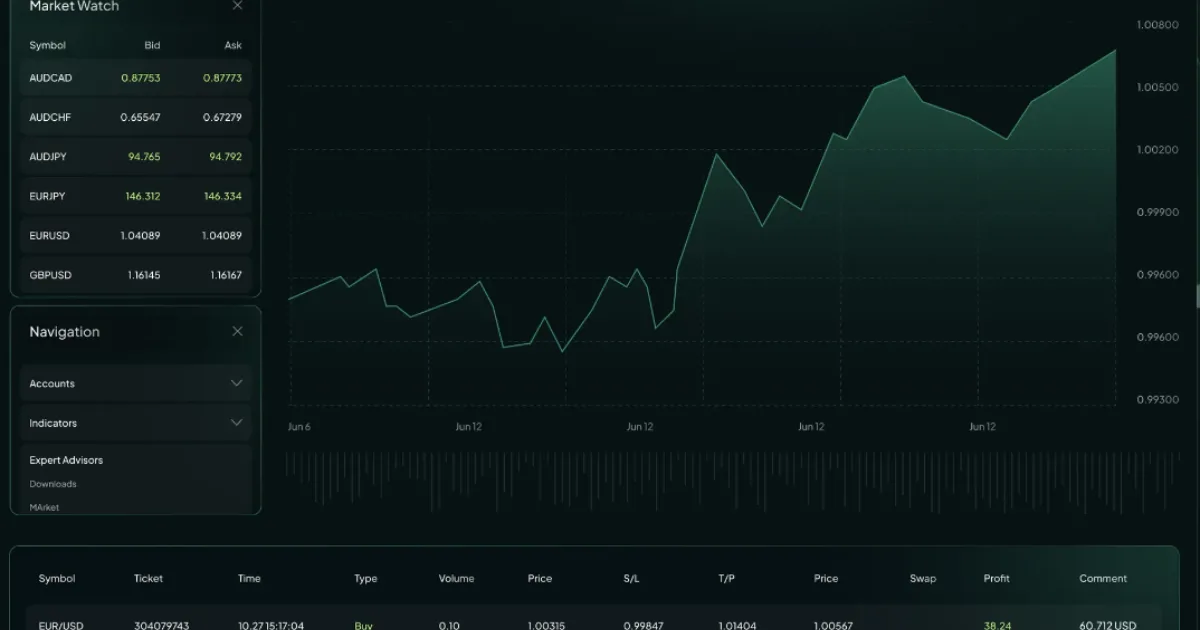
For example, Market Watch displays available instruments and current pricing, while the Navigator provides quick access to accounts, indicators, scripts, and Expert Advisors.
Learning how these windows interact makes navigation much easier during active trading sessions.
H2: Customizing Your Workspace
Every trader develops a preferred workflow. MT5 allows significant customization to improve efficiency.
Popular adjustments include:
- Changing chart colors
- Saving chart templates
- Creating profiles
- Docking windows
- Adjusting toolbar layout
- Choosing favorite timeframes
- Organizing watchlists
A consistent workspace reduces distractions and allows traders to focus more effectively on market analysis.
H2: Configuring Charts for Technical Analysis
Charts are central to the MT5 experience.
Users can open multiple charts simultaneously, compare markets side by side, and switch between various timeframes.
Available chart styles include:
- Bar charts
- Candlestick charts
- Line charts
Common timeframes range from one minute to one month, allowing both short-term and long-term market analysis.
Indicators can be added directly onto charts without affecting the underlying price data.
H3: Popular Technical Indicators
Many traders begin with several widely recognized indicators:
- Moving Average
- MACD
- RSI
- Bollinger Bands
- Stochastic Oscillator
- ATR
- Ichimoku Cloud
- ADX
- Parabolic SAR
- Volume indicators
Each indicator provides different insights into market behavior and should be used alongside sound risk management rather than as a standalone decision-making tool.
H2: Setting Up Expert Advisors
One major advantage of the desktop platform is support for automated trading systems.
Expert Advisors can:
- Monitor markets
- Generate signals
- Execute predefined rules
- Manage trades
- Apply stop-loss adjustments
- Perform repetitive tasks automatically
Before using automation in live markets, traders should understand how each strategy operates and evaluate its behavior under different market conditions.
H2: Backtesting Trading Strategies
The built-in Strategy Tester enables traders to evaluate historical performance before applying automated systems in live environments.
Backtesting may help users:
- Detect programming errors
- Compare parameter settings
- Analyze historical behavior
- Estimate execution efficiency
- Improve trading logic
Historical testing cannot guarantee future performance, but it provides valuable insights into how a strategy behaved under past market conditions.
(Part 1 of the article. Due to response-length limits, the complete ~20,000-character article will continue in the next parts with advanced setup, security, troubleshooting, comparison tables, image recommendation, setup checklist, conclusion, and the required natural anchor link.)
#metatrader 5 for pc
#metatrader 5 windows #mt5 for pc #metatrader 5 pc